Product guide
Build your first Instagram chat flow in Canvas
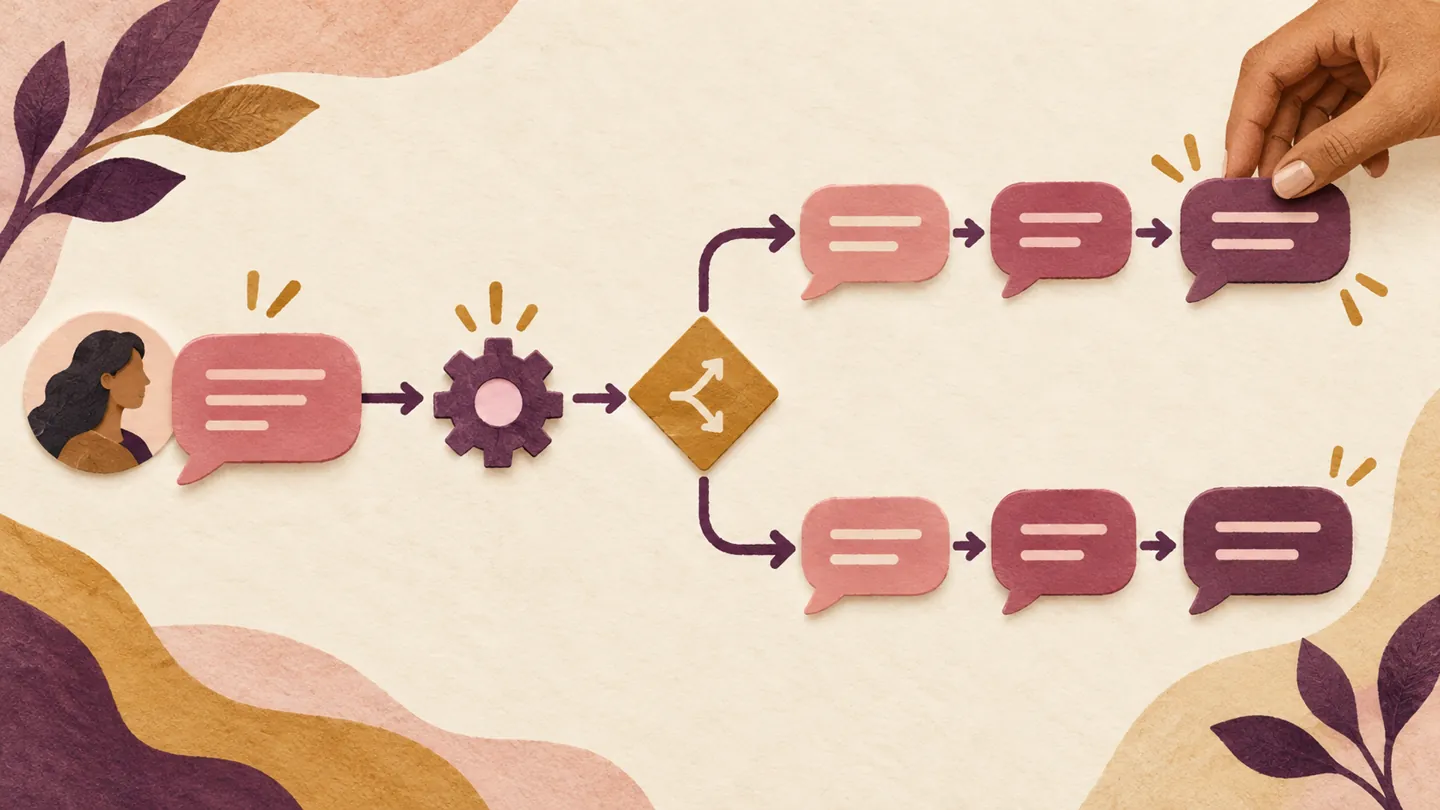
Turn an incoming GUIDE message into a useful choice: get your planning guide or open your booking page. Follow one template through Canvas, step editing, Preview and publication.
Published by ReplyMagnet · Last updated
What will you build in this Canvas walkthrough?
You will turn an incoming GUIDE message into two useful paths: a planning guide or a booking page. Canvas lets you see the steps, edit their messages and preview each route before publishing.
Imagine a coach helping people plan their next quarter. Some visitors want a worksheet they can use independently. Others want to discuss their situation. A short choice gives each person a relevant next step without making them navigate the same sequence.
This is a teaching scenario. The screenshots show an unsaved demonstration in ReplyMagnet’s production builder, captured on 11 October 2026. To demonstrate asset selection, the resource branch uses the real demo asset How ReplyMagnet works.pdf. It is not a coach’s planning guide: substitute your own promised PDF when building your campaign. The booking URL https://example.com/book-a-call is a placeholder, not a working appointment service.
Your finished map will be: Start → Offer choices → planning-guide message or booking message → End. The template also includes separate endings for an unmatched reply and no answer. You can explain the entire conversation before adding more steps.
Prepare your account, resource and booking destination
Use a connected professional Instagram account and an eligible Pro or Agency workspace, including a valid trial. Workspace owners can edit and publish chat flows. Prepare the resource and HTTPS booking destination first.
Have three things ready: the invitation people will see, the PDF they can request and the booking page they can open. For our example, the invitation is “DM GUIDE and choose the planning guide or a link to book a call.” Keep that promise visible while editing.
Upload your PDF to the workspace’s assets and check that its title makes it easy to identify. Open your actual booking page separately to check its purpose, appointment details and next action. This preparation makes configuring the two message branches straightforward.
The campaign documentation explains the underlying account, trigger and resource setup. If you are creating an account, the standard trial lasts 30 days and requires no card; trial allowances still apply. Chat flow access and the volume allowance are separate parts of the plan.
Start this walkthrough with an incoming Direct messages campaign using GUIDE as an exact keyword. Smart matching is another supported entry option; the AI Smart Triggers feature page explains when natural-language matching is useful.
Open the builder and use Resource or booking
Open Build a chat flow from your eligible campaign. Expand Start from a template, choose Resource or booking and select Use template to create an editable starting conversation.
The template supplies the structure so you can focus on the offer and destinations. It includes an opening choice, a resource message, a booking message and deliberate endings. The resource and booking destinations start empty because they belong to your business.
Applying a template changes the draft you are editing. It does not save or publish the flow, and it does not change the campaign’s status. If you already have work in the draft, review the replacement confirmation and available restore option before proceeding.
Choose Canvas to see the conversation spatially. Outline gives you another view of the same steps, so you can switch according to the task. Use Canvas to trace where an answer leads; use Outline when a sequence is easier to review as a list.
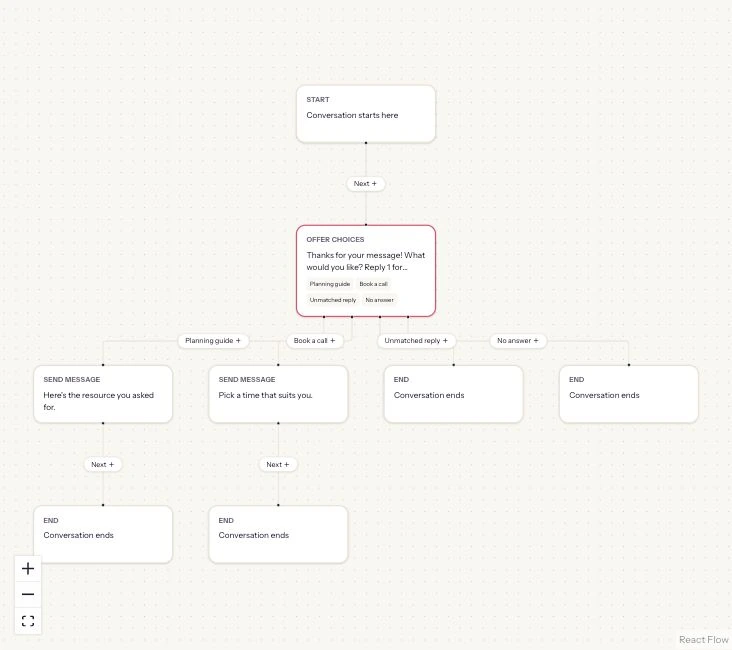
Actual production Canvas, 11 October 2026. The demonstration is an unsaved draft; the coach scenario explains how to adapt its resource and booking paths.
Read the map and arrange your workspace
Follow the labelled connections from Start through Offer choices to each Send message and End. Drag cards to arrange the view, use Arrange for layout and Find a step to locate content.
Think of a card as one job in the conversation. Start identifies the entry. Offer choices asks the visitor to pick a direction. Send message supplies the relevant answer and optional link. End gives a path an explicit stopping point.
The connection labels explain which answer takes which route. Trace one complete path at a time before editing. In this example, the planning-guide answer should reach the resource message; Book a call should reach the booking message.
You can drag cards to make the map easier to read. Moving a card changes its layout, rather than changing which branch reaches it. Use the zoom and fit controls when you need to inspect a specific section or return to the whole map.
Find a step searches message text, fields, tags and step IDs. Select a result to jump to that step. This is especially helpful after the first conversation grows into several useful branches. Use the guided connection controls when changing the conversation itself.
Write the choice and its reply labels
Select Offer choices and edit Step properties. Set Message text, then name Reply 1 Planning guide and Reply 2 Book a call. Keep the numbered instructions aligned with their order.
A useful prompt tells the visitor what each option provides. Adapt this copy to your offer:
“Thanks for your message! What would you like? Reply 1 for Planning guide or 2 for Book a call.”
The editor supports up to three replies, with 20 characters per label. Two are enough for this scenario. Put context in the message and keep each label short enough to recognize on its own.
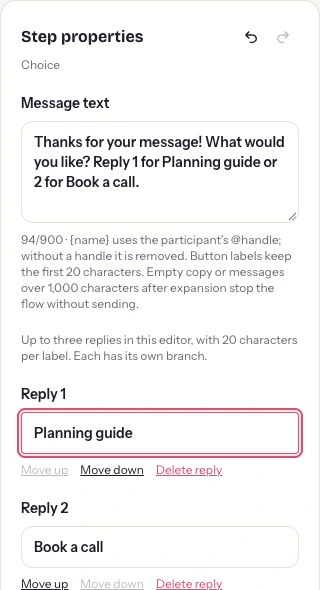
Actual production step properties. Edit the prompt and labels together so the numbered instructions describe the paths you configured.
People can respond with a reply label or its number. If you rename or reorder options with Move up or Move down, update the numbers in the message too. The conversation choices guide offers more help with meaningful labels.
Review No-answer timeout (seconds) and the Unmatched reply and No answer routes. The starter template ends these routes. That is a deliberate choice you can retain, or adapt with a short relevant message when it would help the visitor.
Configure the planning-guide message and PDF
Select the resource Send message step. Edit Message text, choose Workspace asset · tracked delivery under Link, select your PDF and set a descriptive Link title.
The message should repeat what the visitor chose. For the coach example, use “Here’s the planning guide you asked for. Open it when you’re ready to work through your next quarter.” A useful link title is Get the guide.
Under Workspace asset, select your actual planning PDF. A descriptive asset title makes it easier to avoid selecting a similarly named older version. ReplyMagnet creates a personal tracked resource link when the message is sent. This demonstration uses Direct delivery. A flow asset link follows the campaign’s configured capture settings; review those settings for your own campaign.
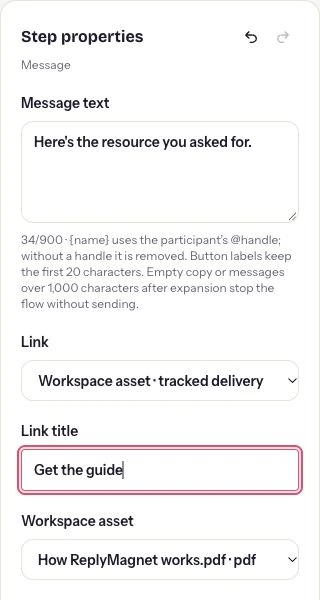
Actual production asset configuration. The selected demonstration file is How ReplyMagnet works.pdf; choose your own planning guide to fulfill the coach example’s promise.
Keep the link title consistent with the message and file. If the file is a worksheet, call it a worksheet rather than a course or consultation. Preview can help you read the configured text, while opening the actual PDF separately checks the document people should receive.
Configure the booking branch
Select the booking Send message step, choose External HTTPS link under Link, enter the actual HTTPS destination and set Link title to Book a call.
Give the visitor enough context to decide whether to open the page. For example: “Prefer to talk it through? Open the booking page to see the call details and choose a suitable time.” Adapt the wording to the appointment your business actually provides.
The demonstration’s https://example.com/book-a-call address illustrates where the destination belongs. Replace it with your real booking page before publishing. Check the full address for a missing path or an old event link.
The message leads to the booking service; the service handles the appointment process. A visitor choosing Book a call has selected a useful next step, but a completed appointment requires the later booking confirmation.
Leave the branch connected to End when its job is complete. The two branches now fulfill different promises: one provides a resource and the other opens a booking destination.
Add useful steps as the conversation grows
Use a highlighted + connection to insert a step. Add questions, conditions or contact updates when the answer changes what should happen next; reuse a shared continuation where branches genuinely converge.
The Canvas palette names the building blocks by their purpose:
- Send message: provide text and an optional resource or external link.
- Offer choices: give the visitor a small set of reply paths.
- Ask a question: collect a typed answer into a chosen field.
- Check a condition: route using a saved field or tag.
- Update contact: set a field or add or remove a tag. The custom fields and tags guide covers naming them.
- Wait: pause before continuing within the allowed messaging window.
To add a question, choose where its answer should be saved. The dialog offers an existing field or Create a new answer field, with an Answer name and Answer type. Use a question when the response has a practical role, such as identifying the topic the person wants to discuss.
When two paths should share later steps, select an End and use Continue at existing step in Properties. Compatible destinations appear in the list. Shared steps are marked on Canvas, and editing one updates the continuation used by each incoming branch.
These controls let you expand a successful small conversation without rebuilding every path. Keep the first guide-or-booking version focused, then add the next decision your audience actually needs.
Preview both paths and follow the highlighted route
Choose Preview to play the draft’s conversation logic. Try each reply, inspect its message and reset to check the other branch. Canvas highlights the route taken in that preview.
For the resource path, respond with 1 or Planning guide. Read the next message and inspect its displayed resource title. Then use Reset preview and try 2 or Book a call. Check that the second path shows the booking message and intended destination.
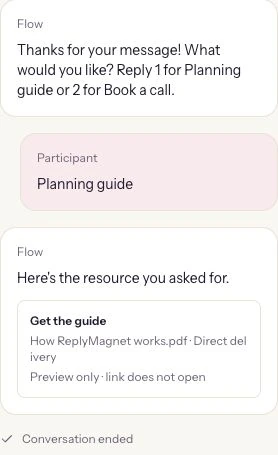
Actual production logic Preview. The displayed conversation is simulated: no Instagram message is sent and no contact conversation is stored. Demonstration destinations remain examples.
Green connections show the path taken in the current preview. Dashed connections identify branching routes not taken in that preview, and step indicators help you locate where it is now. Jump to preview step brings the relevant part of Canvas into view.
Treat that highlighting as a map of this draft and this preview run. Reset and try another path to inspect a different outcome. Read the messages together: the opening, chosen label and destination should describe the same useful action.
Preview shows the logic and configured links without opening them. Check the real PDF and booking page separately. Before publication, also inspect the configured unmatched and no-answer endings so every visible branch has an intended outcome.
What other useful conversations can you build?
Use Canvas for resource delivery, consultation handoffs, service enquiries, event information and qualification questions. Combine messages, choices and saved answers around the next action your visitor wants.
The same building blocks support several practical journeys. Start with the outcome, then choose the steps that help someone reach it.
- A course creator’s starter lesson: offer a choice between two lesson topics, then send the matching worksheet or lesson-page link. The choice makes the first resource relevant to the learner.
- A coach’s consultation path: ask which topic the person wants to discuss, save the typed answer to a field and share the appropriate booking destination. Your booking service handles the appointment.
- A service business’s enquiry menu: offer a few clearly named service categories and route each answer to its own explanation or enquiry-page link. Use a saved answer or tag when a later step needs that context.
- An event organiser’s information flow: let people choose the schedule, preparation guide or registration page, then provide the corresponding destination. Update the links and copy when event details change.
- A lead-qualification conversation: ask a relevant question, save the answer and use a condition on a field or tag to choose the next message. Collect details because they change the next step, and keep the purpose clear.
If two routes should finish with the same instruction, use a shared continuation rather than maintaining duplicate copies. For each use case, begin with a compact version, preview its paths and expand when another decision serves a clear purpose.
Save the draft and publish the reviewed version
Choose Save draft, review the Publish checklist and deliberately Publish when the saved flow is ready. New triggers use the published version; existing conversations retain the version they started with.
Saving records your draft for further work. Publishing makes the reviewed version available to new eligible triggers. The builder shows saved and published status separately, helping you keep track of which version is ready to use.
Review the correct Instagram account, incoming trigger, message wording, resource and booking destination before confirming publication. Follow the checklist in the builder and resolve its highlighted items. Publication leaves the campaign’s status unchanged, so also check whether the underlying campaign is intended to accept requests.
The screenshots in this walkthrough stop at an unsaved demonstration; they do not record a published coach campaign. When you publish your own reviewed flow, use an account you control or a consenting colleague for a deliberate delivery test. That checks the actual Instagram journey alongside the logic you previewed.
Keep one owner responsible for updating the invitation and destinations when the offer changes. A clear two-path conversation is a useful starting point: visitors can ask for the guide or take the next step toward a call, and you can see how the configured journey supports each choice.
Common questions
Are Canvas and Outline different flows?
They are two views of the same conversation. Canvas helps you trace branches visually; Outline presents the configured steps as an ordered structure.
Does choosing a template publish it?
No. A template creates ordinary editable draft steps. Save draft and Publish are separate actions, and applying a template leaves campaign status unchanged.
Can several branches use the same later step?
Yes. Select an End and use Continue at existing step to choose a compatible continuation. Shared steps are marked, and changes affect every branch using them.
Can people type an answer to a choice?
Yes. A person can type a configured reply label or its number from 1 to 3. Keep the message’s numbered instructions aligned with the option order.
Which plans include the Instagram builder?
Pro and Agency include eligible Instagram chat flow access, including valid trials. Workspace owners can edit and publish; plan and trial allowances apply.
Keep reading
- Create a ReplyMagnet campaign: posts, triggers and delivery
- AI Smart Triggers for Instagram
- Instagram DM conversation design: a practical guide
- Instagram DM Automation Rules: 7-Day & 24-Hour Windows