Guide
Instagram message requests: where they are and how to manage them

Instagram message requests are DMs from accounts you don't follow. They wait in a Requests folder until you accept them. Flagged ones go to a Spam folder with no notification, which is why so many people think a message never arrived.
Published by ReplyMagnet · Last updated
What are Instagram message requests?
Instagram message requests are direct messages from accounts you don't follow. They wait in a Requests folder until you accept them, and Instagram's Help Center says they aren't marked as seen until you do.
Every new DM goes to one of three places. Which one depends on whether you follow the sender and on Instagram's spam filter:
- Chats (Primary on professional accounts): messages from people you follow, or from anyone you already accepted or replied to.
- Requests: messages from people you don't follow. You read them without the sender seeing a "seen" receipt, then accept, delete or block.
- Spam: requests Instagram flags as offensive or spam, or that match your Hidden Words. You get no notification for these.
Sources: Instagram's message requests help, professional inbox help and spam help, checked 25 October 2026.
If you run a Business or Creator account, the folder matters twice: once for DMs people send you, and again for the DMs you send people who comment. A commenter who doesn't follow you gets your reply as a request. ReplyMagnet sends that comment DM through Meta's official API and writes a public reply under the comment, so the person knows to look. Start free: the free plan includes 1,000 engagements a month.
How to see message requests on Instagram
To see message requests on Instagram, open Messages and tap Requests in the top right. Flagged requests sit one level deeper in Spam, per Instagram's Help Center, checked 25 October 2026.
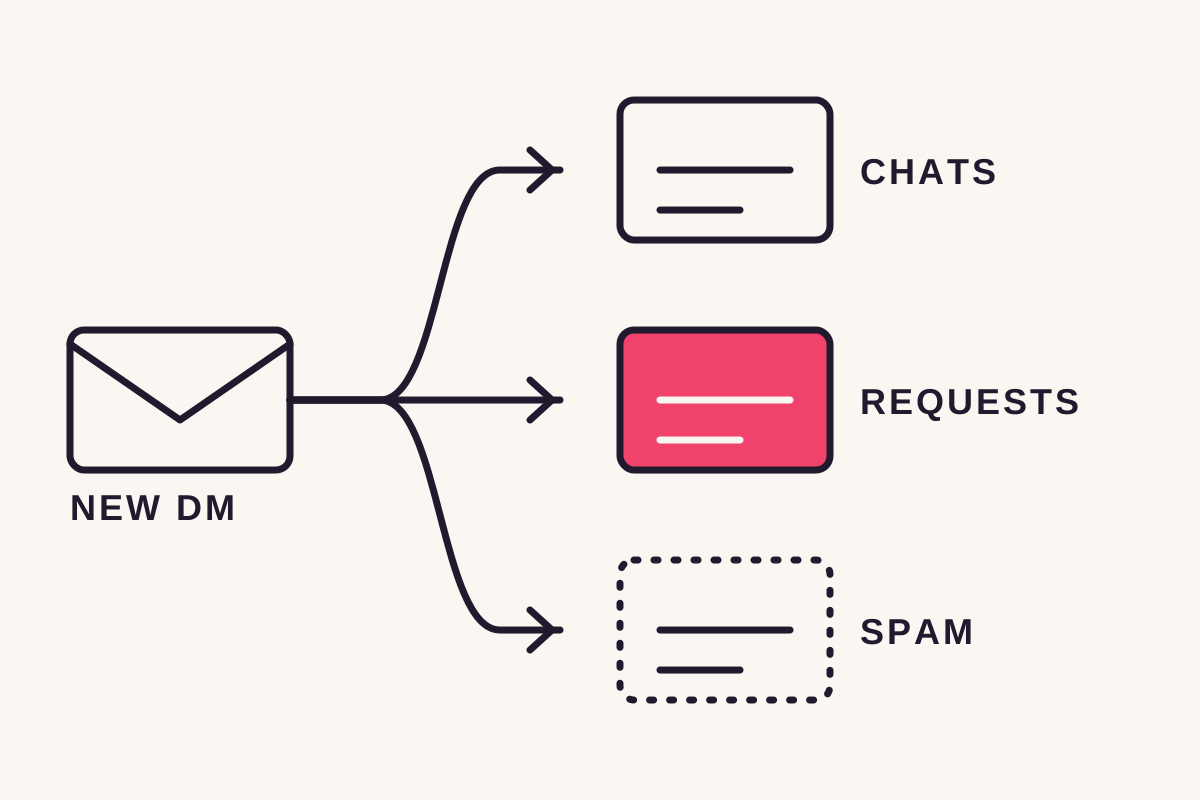
The diagram shows the three destinations. A DM goes to Chats if you follow the sender or have accepted them before. It goes to Requests if you don't follow them. It goes to Spam if the filter or your Hidden Words flag it.
On iPhone and Android:
- Tap Messages at the bottom of the app.
- Tap Requests in the top right.
- Read the list. Tap Spam to see flagged requests.
- On a professional account, tap All requests to switch to Top requests, which sorts requests by important accounts.
Professional accounts see three folders: Primary, General and Requests. A chat you moved to General keeps its notifications off unless you change it in settings.
Where hidden requests went: the Spam folder
Instagram's hidden requests folder is now called Spam. It holds requests that may be offensive or spam, or that match your Hidden Words, and Instagram sends no notification for them.
Older guides still say "Hidden requests". Instagram's spam help page now names the folder Spam. To clear it on the phone app:
- Tap Messages, then Requests, then Spam.
- Tap Edit, then Delete all, or open a single thread.
- In a thread, choose Accept, Delete, or Block / Leave.
Accepting a thread from Spam moves it to your main messages. Instagram notes that Hidden Words filtering for spam is not supported in web browsers, so check this folder in the app.
Instagram message requests not showing: 6 checks
Instagram message requests usually go missing for one of 6 reasons. You checked the wrong account, the request is in Spam, you follow the sender, a Top requests filter is on, your settings refuse requests, or you're on a browser.
Work down the list. Each check takes a few seconds:
- Wrong account. If you switch between profiles, the request went to the account they messaged.
- It's in Spam. Flagged requests arrive silently. Open Requests, then Spam.
- You follow them. Then the message skipped Requests and sits in Chats, or in Primary or General on a professional account.
- Top requests is on. Tap Top requests and switch back to All requests.
- Your settings refuse it. Under Message requests you can choose not to receive requests from some people at all. Blocked accounts can't send you requests either.
- You're in a browser. Update the phone app and check there, since the Spam view is app-first.
If you sent the message and the other person can't find it, the same list applies on their side. Ask them to check Requests and Spam on the account you messaged.
Accept, delete or block a message request
Accepting an Instagram message request moves the chat into your main inbox, and the sender's future messages go there directly. Delete removes the request, and Block stops that account sending you requests at all.
What each action does, per Instagram's Help Center
Action
Accept
- What happens
- The chat moves to your main inbox. Future messages skip Requests
- When to use it
- A real person or a business you want to hear from
Action
Reply
- What happens
- On professional accounts, replying also moves future messages to Primary
- When to use it
- You want to answer without a separate accept step
Action
Delete
- What happens
- The request is removed. It is not a block
- When to use it
- Noise you don't need, from someone harmless
Action
Block
- What happens
- The account can't send you requests or add you to groups
- When to use it
- Harassment or repeat spam
Action
Report
- What happens
- The message goes to Instagram's team. The sender doesn't see who reported
- When to use it
- Scams and abuse
A person may run several accounts. Instagram notes you may need to block each one.
Control who can send you message requests
To control message requests on Instagram, go to your profile, tap Menu, then Messages and story replies, then Message requests. Choose where requests from each group of people go, or whether you receive them at all.
The exact path, from Instagram's message requests help:
- Tap your profile picture in the bottom right.
- Tap Menu in the top right.
- Under How others can interact with you, tap Messages and story replies.
- Tap Message requests and pick a setting for each group.
- Tap Who can send you group message requests to choose Everyone or People you follow.
To filter words, phrases or emoji into Spam, add them under Hidden Words. Instagram says changing your request settings does not affect messages from your messaging ads. A business can lock requests down without losing ad leads.
Why business DMs land in message requests
A business DM lands in message requests when the recipient doesn't follow that business. Instagram's Help Center says a message to someone who doesn't follow you may appear as a request, depending on their settings.
This catches out every creator who sends a link to people who comment. Meta allows one private reply per comment, sent within 7 days of the comment. If the commenter doesn't follow you, that reply arrives as a request. Source: Instagram's who you can message help.
A worked example: a Reel draws 300 comments with your keyword, and 200 come from people who don't follow you. All 300 get the DM, but 200 of them see it in Requests. In ReplyMagnet that month uses 300 of the free plan's 1,000 engagements. The 200 requests only get opened if people know to look.
No tool can move a DM out of someone's Requests folder. Only the recipient's accept or reply does. What you control is the signal:
- Say it in the public reply. "Sent! Check your message requests" under the comment. ReplyMagnet posts a public reply for each matched comment, and you write the text.
- Say it in the caption. "Comment GUIDE, then check your DM requests."
- Make the preview obvious. Open the DM with what they asked for: "Here's the GUIDE checklist you asked for."
Our comment-to-DM troubleshooting guide covers the other reasons a DM seems missing.
Where message requests go wrong for businesses
Business DMs in message requests go unread for four reasons. The public reply doesn't mention requests, the test came from your own account, two tools sent two DMs, or the first line looks like an ad.
Fix them in this order:
- No pointer. Add "check your requests" to the public reply and the caption.
- Self-testing. Comment from a second account that doesn't follow you. That is the only way to see the Requests view a real commenter gets.
- Two tools, two DMs. Turn off Business Suite's comment to message on any post another tool covers, or the person gets two requests.
- An ad-shaped preview. Requests show a short preview. A first line that names what they asked for gets opened. A sales pitch gets deleted.
Once someone accepts or replies, your next messages go straight to their inbox. Inside Meta's 24-hour messaging window, you can answer follow-up questions normally.
Common questions
How do I see message requests on Instagram?
Open Messages in the Instagram app and tap Requests in the top right. Flagged requests are inside Requests, in a folder called Spam.
Why can't I see my message requests on Instagram?
Missing Instagram message requests are usually in the Spam folder, sent to another account you run, or in Chats because you follow the sender. A Top requests filter or your request settings can also hide them.
Does someone know if I read their Instagram message request?
No. Instagram's Help Center says message requests aren't marked as seen until you accept them.
What happened to hidden requests on Instagram?
Instagram now calls the hidden requests folder Spam. It sits inside Requests and holds flagged requests, with no notifications.
Why did a business's DM go to my message requests?
Instagram puts DMs from accounts you don't follow in Requests, including a business's reply to your comment. Accept it or reply, and that business's future messages go to your main inbox.
Keep reading
- Instagram DM Automation Rules: 7-Day & 24-Hour Windows
- Instagram Comment-to-DM Not Working? Diagnose & Fix It
- Instagram Comment-to-DM Automation: Setup & Test Guide
- Instagram automation: what's safe to automate (2026)